Skip to main content
-
Home
-
Vec-TR
-
How to
- Download a PDI Report
1. Navigate to Reports
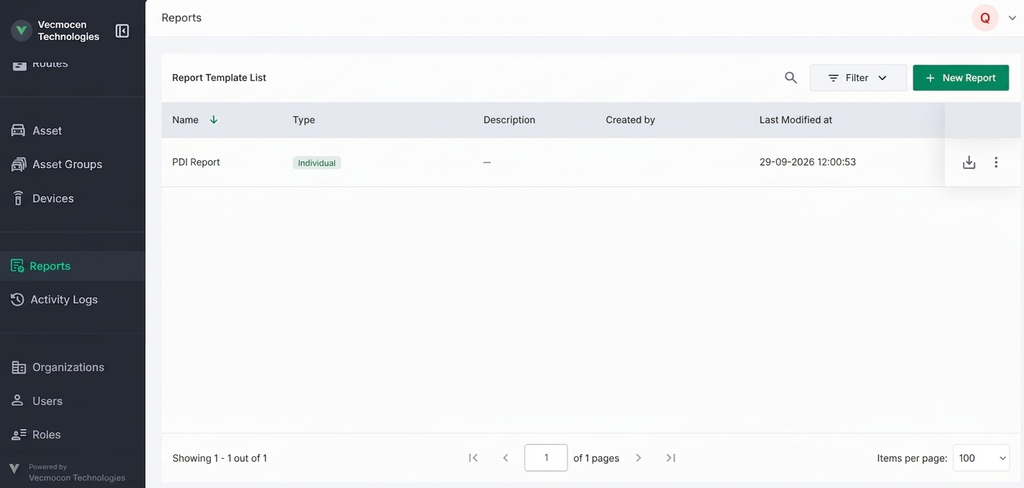
- Navigate to the Reports tab from the left-side menu. Here, you will see the Report Template List. If no reports exist, the list will be empty.
2: Select the Report Template & Category
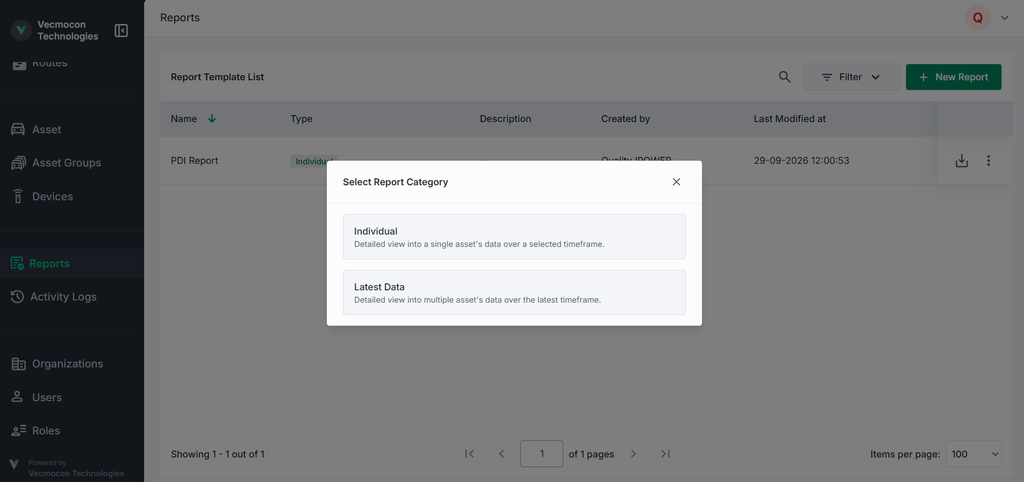
- Locate PDI Report in the Report Template List.
- Click the download/action icon (or three-dots menu) on the right side of the PDI Report row.
- In the Select Report Category pop-up, choose your desired option (e.g., Individual or Latest Data).
Step 3: Select Assets (Bulk Selection Option)
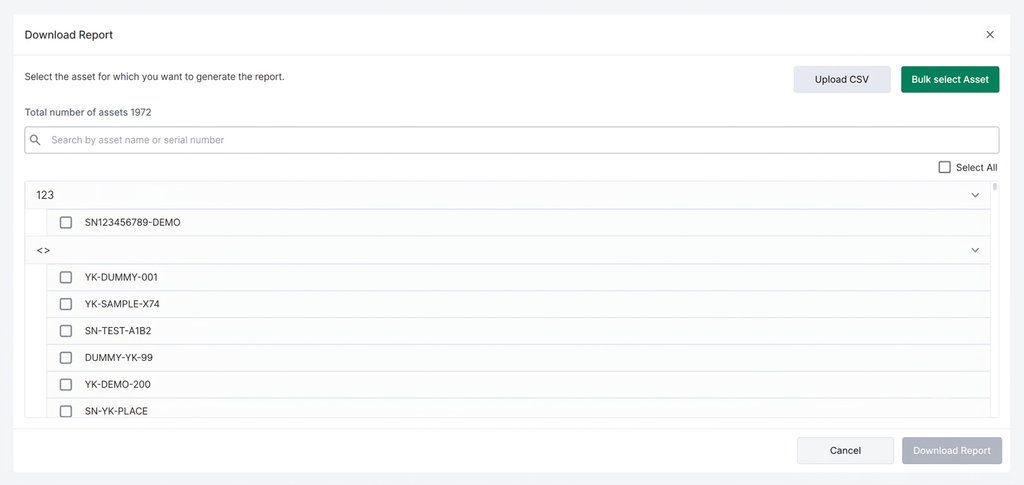
- On the Download Report screen, click on Bulk Select Asset in the top-right corner.
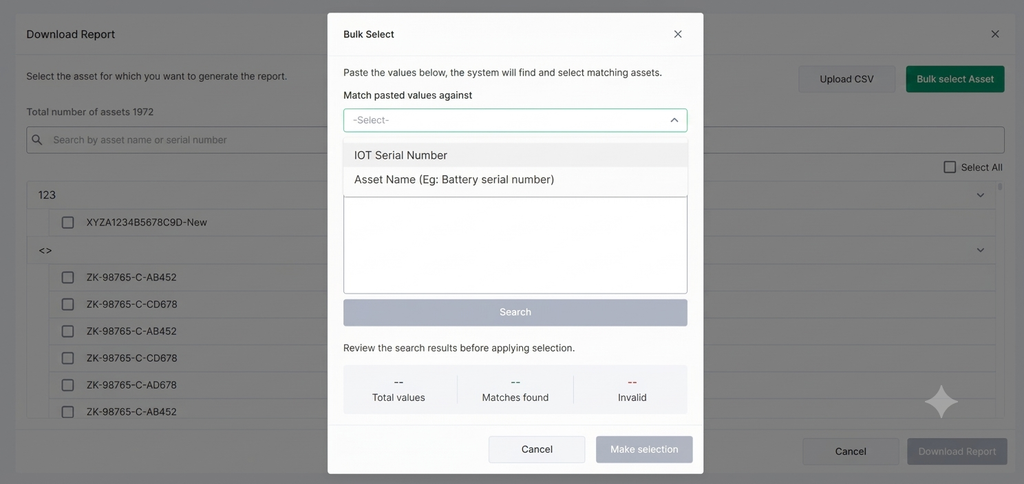
- In the Bulk Select modal:
- Choose the search parameter under Match passed values against (e.g.,
IOT Serial Number or Asset Name).
- Paste your list of serial numbers/asset names into the Paste values here box (one per line).
- Click Search.
- Review the search results summary (Total values, Matches found, Invalid) and click Make selection.
Step 4: Generate and Download
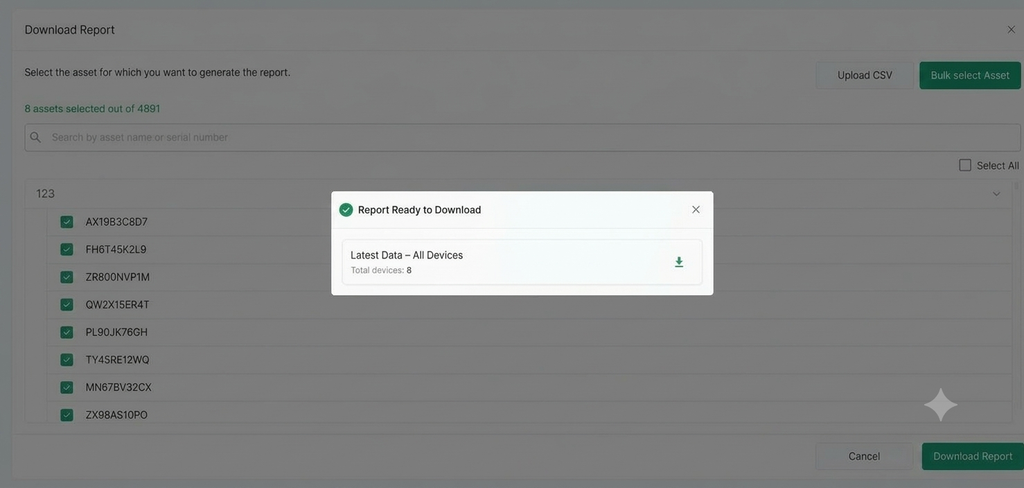
- Verify the selected assets counter on the top left of the screen.
- Click the green Download Report button at the bottom right.
- A Preparing Report Download dialog will appear while the system processes your request.
- Once processing is complete and the status updates to Report Ready To Download, click the download icon.
- The report file (e.g.,
.xlsx / Excel format) will download to your device.