



Bulk Asset Creation allows you to upload multiple assets at once using a CSV template. Follow the steps below:
Step 1: Open Bulk Asset Creation
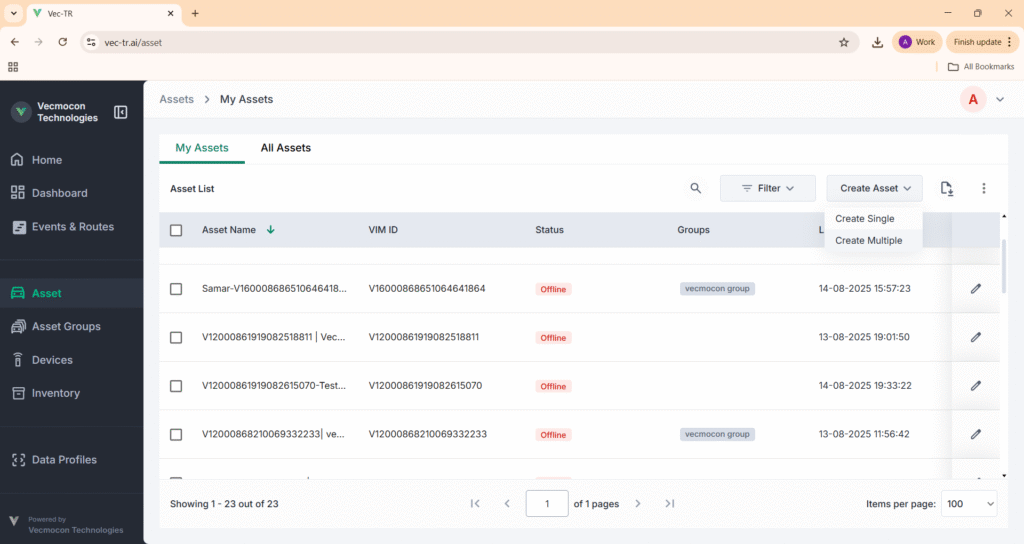
- From the Asset tab, click on the Create Asset dropdown.
- Select Create Multiple.
Step 2: Download the Device Linking Template
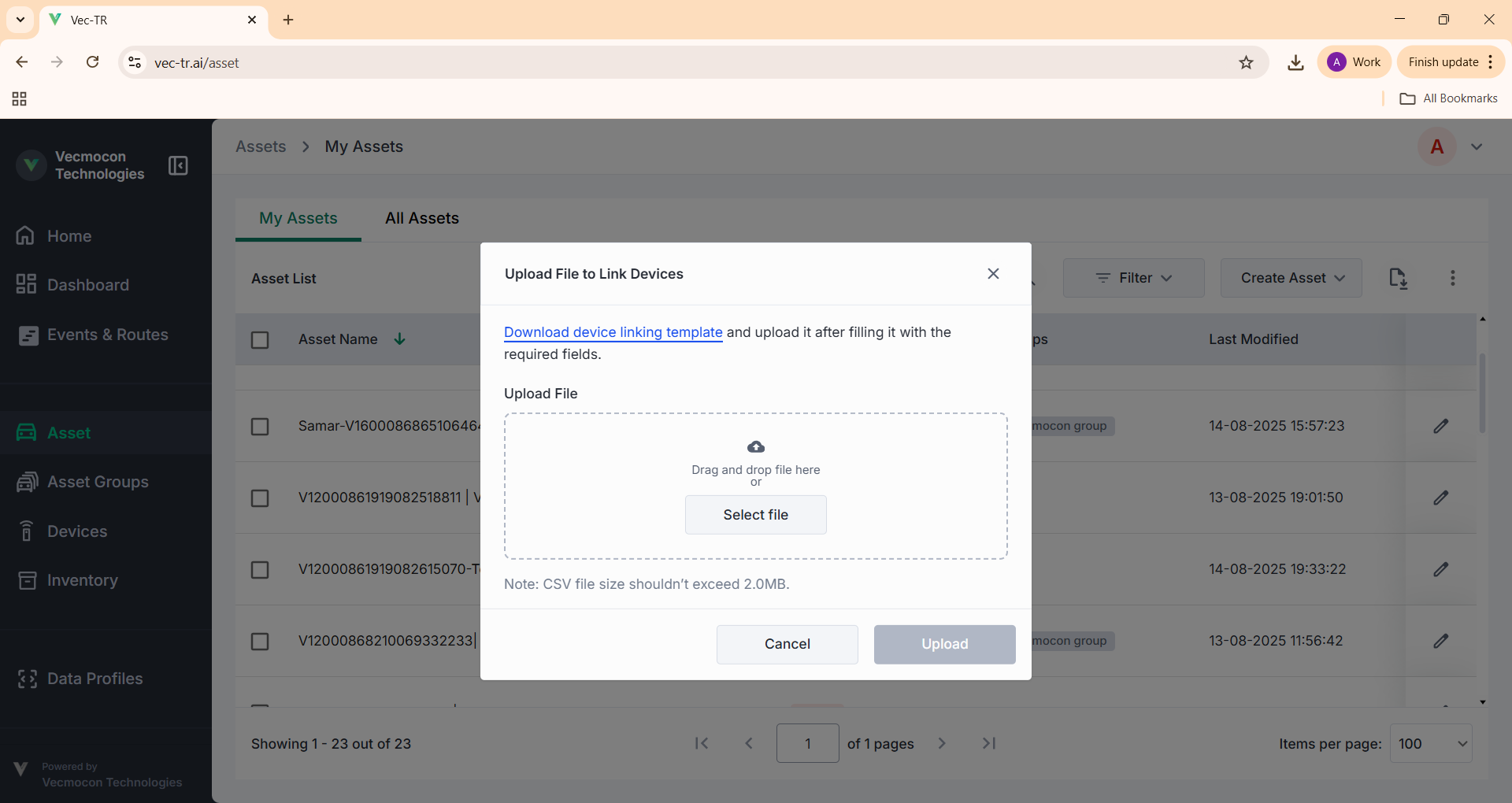
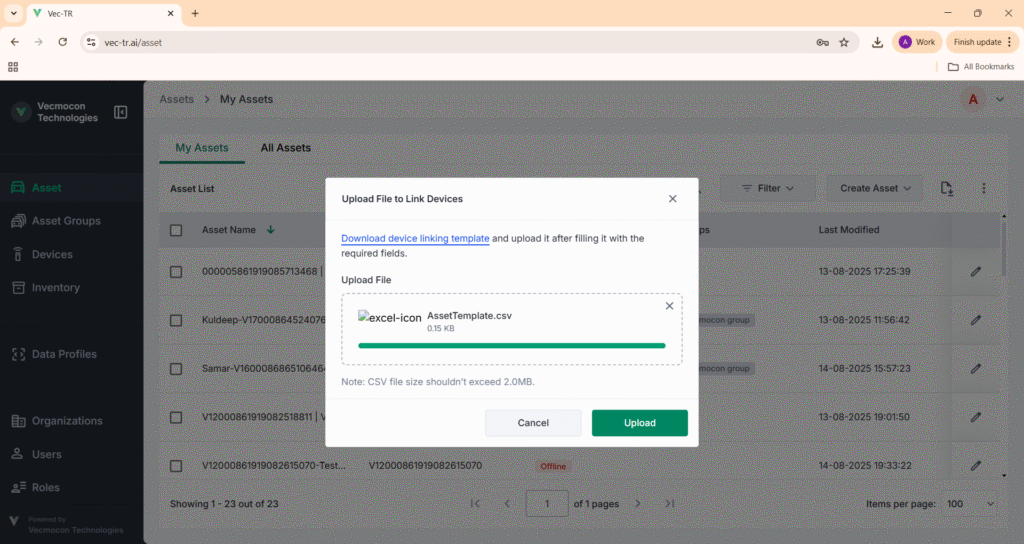
- A dialog box will open for uploading files.
- Click on Download device linking template to download the CSV file.
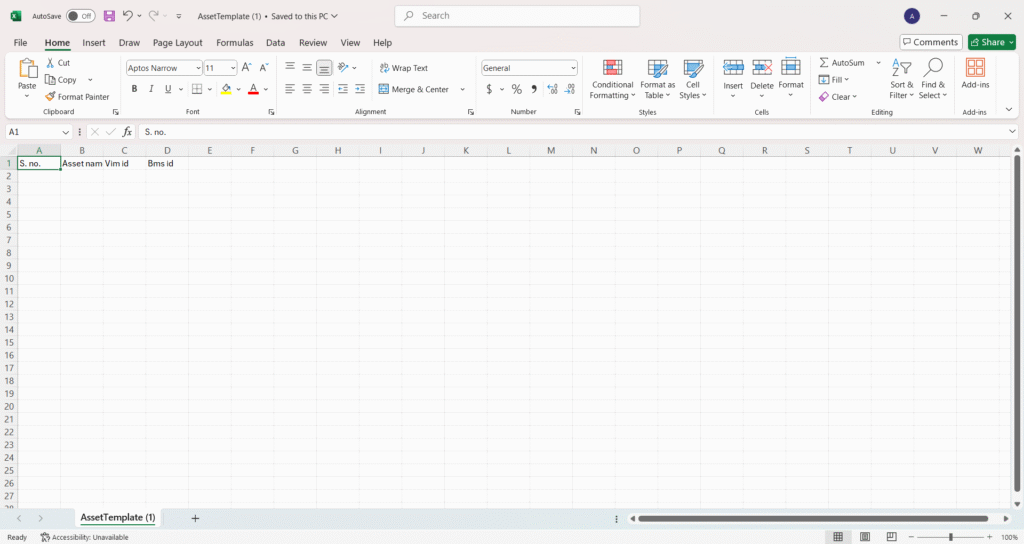
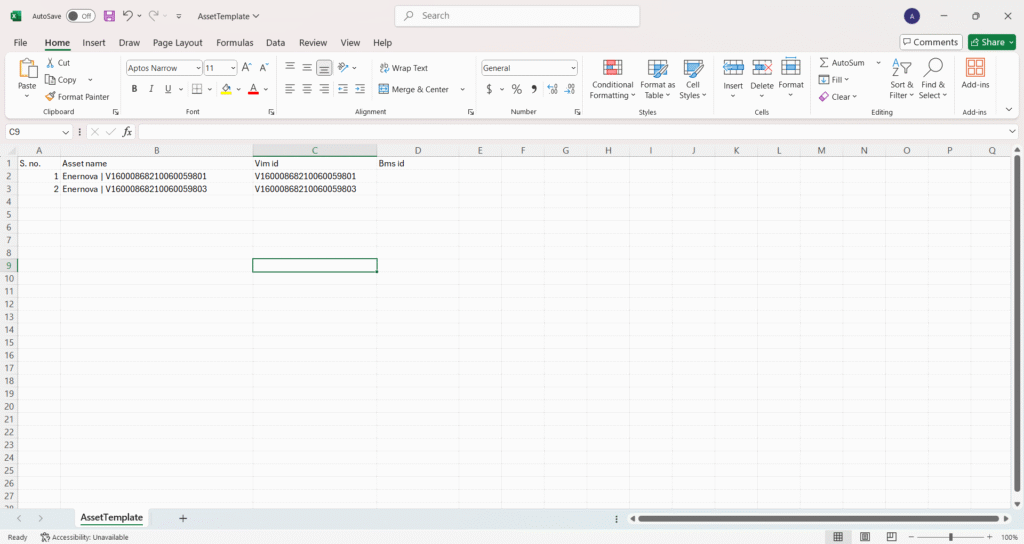
Step 3: Fill in the Template
- Open the downloaded CSV file.
- Fill in the required details.
- VIM ID is mandatory.
- Other fields (Asset Name, BMS ID, etc.) can also be filled.
- Save the CSV file.
Step 4: Upload the CSV File
- Return to the bulk asset upload dialog box.
- Click Select file and choose the saved CSV file.
- Then click Upload.
Step 5: Verify Uploaded Assets
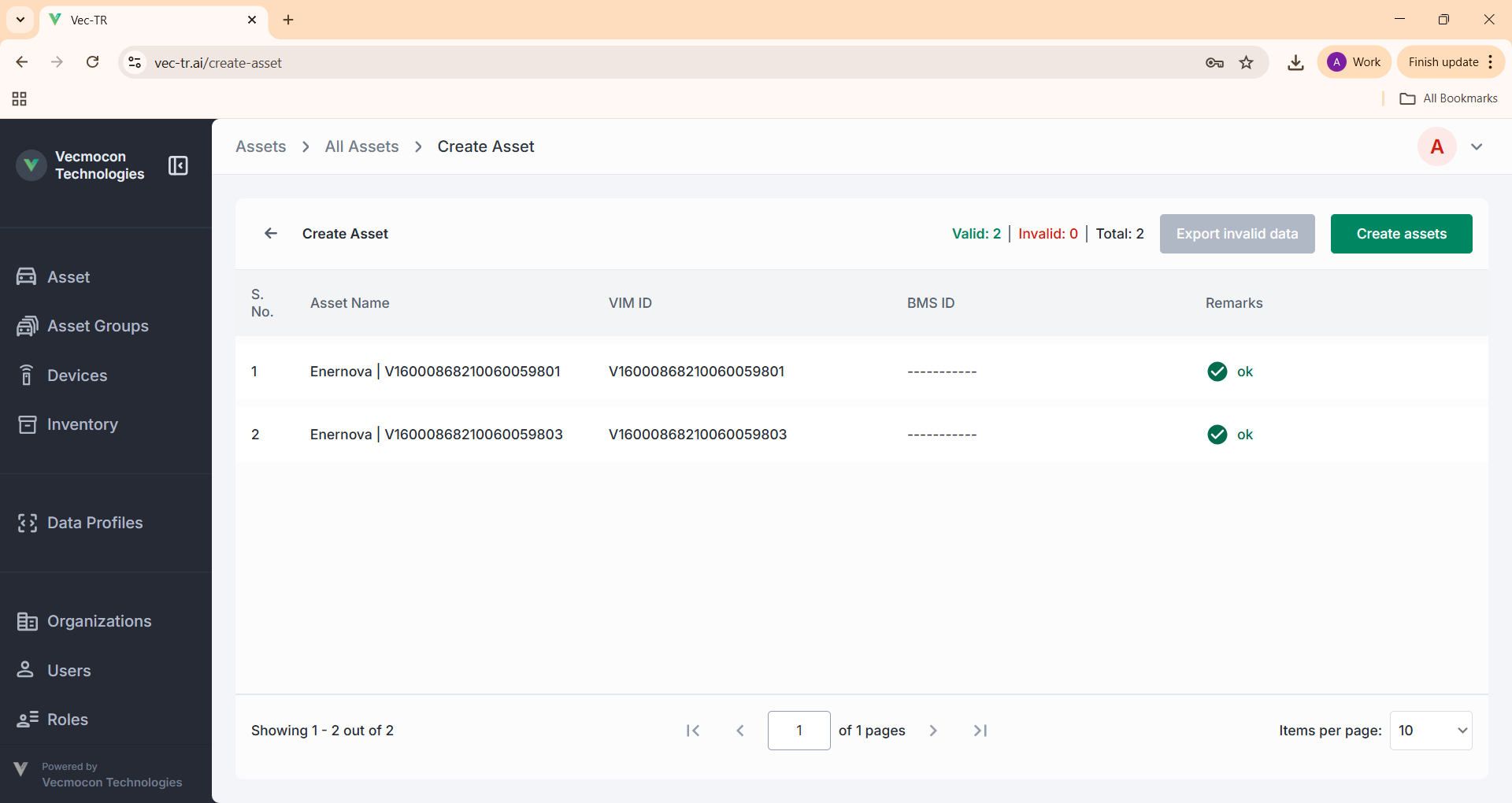
- Once uploaded, you will see a list of assets from the CSV.
- The Remarks column will show:
- ok if the entry is valid.
- error if there is an issue with that asset.
- Verify all entries before proceeding.
Step 6: Confirm and Create
- After verification, click Create Assets.
- A confirmation dialog will appear showing how many assets will be added.
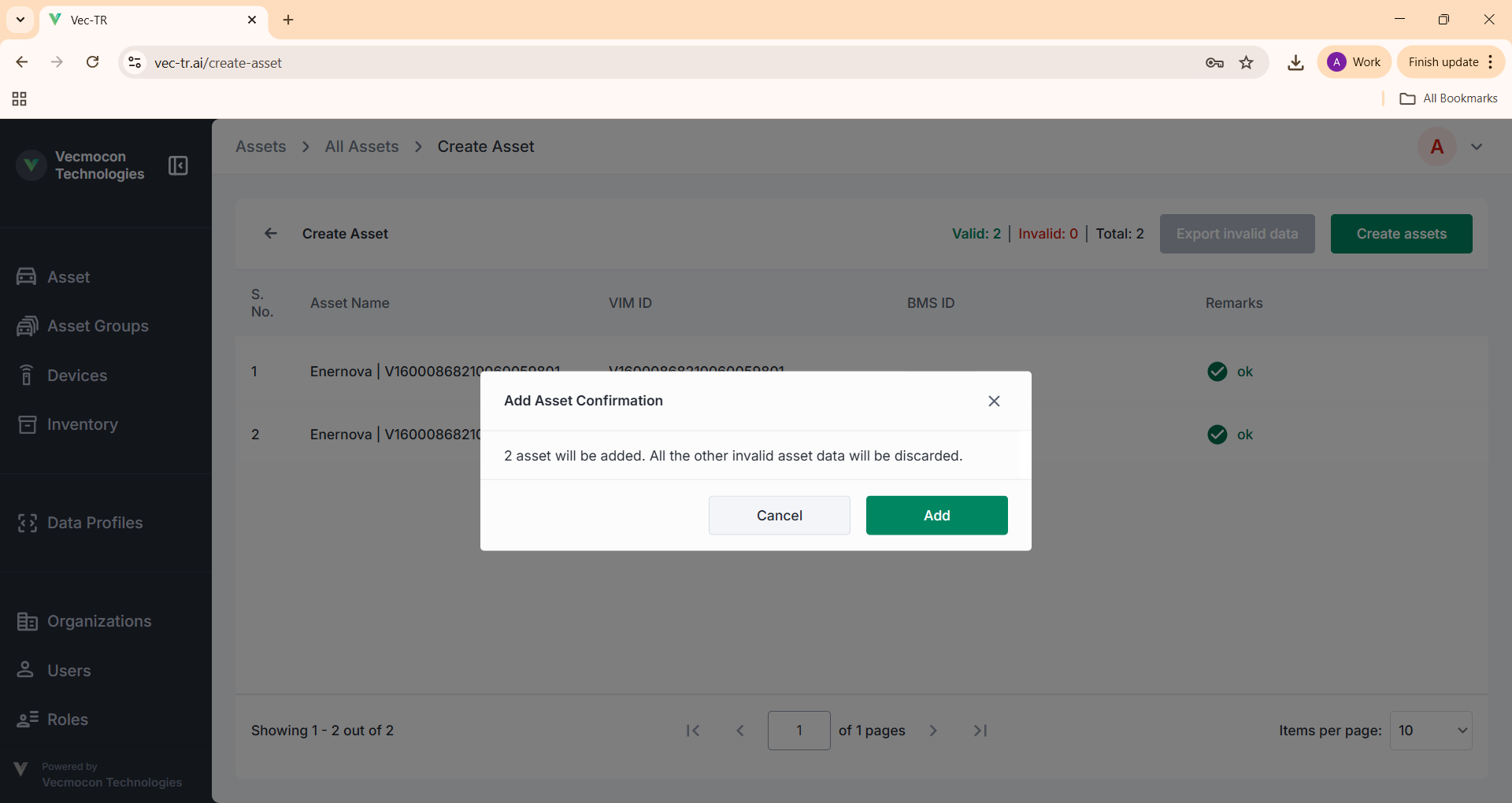
The system will now create all valid assets in bulk.